
When scanning large batches of documents in Colour mode, the resulting PDF file may exceed your organization's email (SMTP) attachment size limit and fail to send.
The High Compression PDF feature available on Kyocera devices can significantly reduce the file size while maintaining good document quality, allowing larger scans to be emailed successfully.
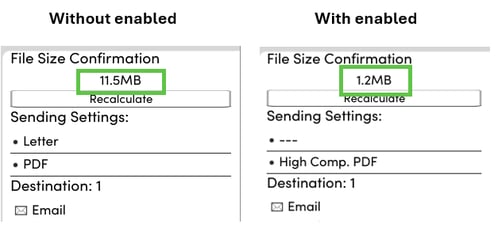
Example: A 25-page double-sided document (50 scanned images) can result in dramatically different file sizes depending on whether High Compression is enabled.
-
Without High Compression: Large file size, may exceed email limits.
-
With High Compression: Significantly reduced file size, more likely to be delivered successfully via email.
Tip: You can use the File Size Confirmation function before sending to compare the difference between standard PDF and High Compression PDF settings.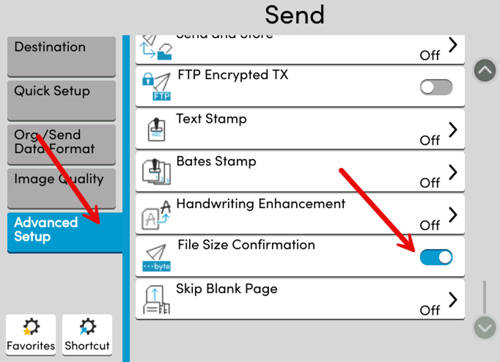
How to Enable High Compression PDF
Step 1
-
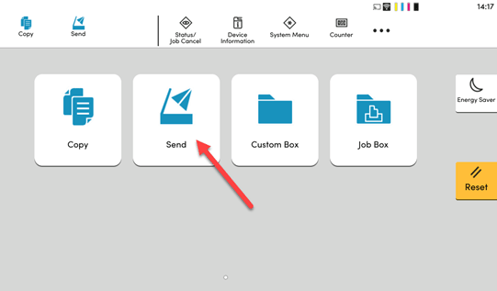
Select Send from the device home screen.
Step 2
-
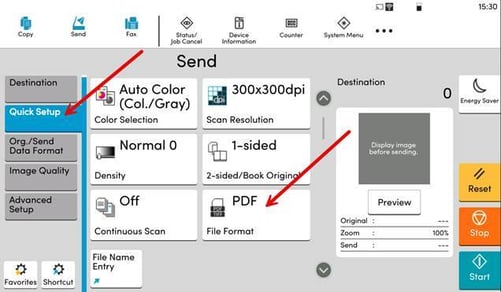
In the Scan menu, select Quick Setup on the left-hand side.
-
Then select PDF/File Format.
Step 3
-
Select High Comp. PDF.
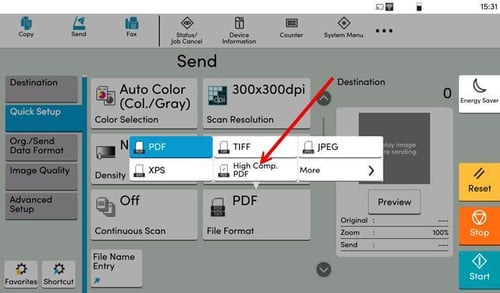
Step 4
-
Load your documents and start scanning as normal.
-
The scanned PDF will be compressed, reducing the overall file size and helping prevent email delivery issues caused by attachment size limits.
When Should You Use High Compression PDF?
-
Large batches of documents
-
Full Color scans
-
Documents being sent via email
-
Files approaching or exceeding email size limits
⚠️ Avoid using High Compression PDF when scanning documents that contain fine details or images requiring the highest possible quality, as some image quality reduction may occur.
Recommendation: If a scan fails to send due to file size limitations, try enabling High Comp. PDF before reducing scan quality or splitting the document into multiple files.