
If you have installed a new toner container and the Kyocera device does not recognize it, this is usually caused by a cover or door that is not fully closed.
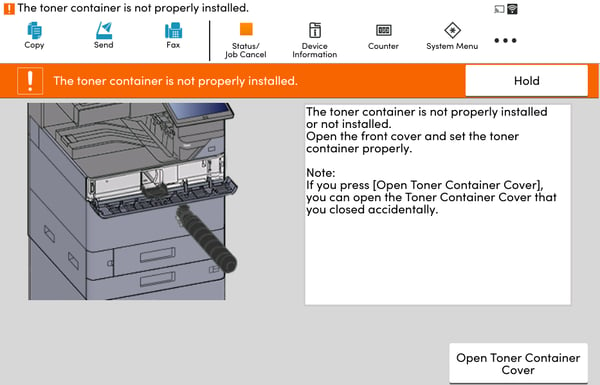
Error Message: “The toner container is not properly installed”
Common Cause
Kyocera devices will not detect a newly installed toner container unless all covers and doors are securely closed. If another cover or door was previously left slightly open, changing the toner can trigger a sensor fault, resulting in this message.
How the Warning Appears
Kyocera devices may cycle warning messages on the display:
(These messages may rotate, so watch the screen carefully)
-
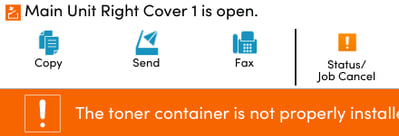
Modern models (LCD screen): Alerts appear in the upper-left corner, such as: “Main Unit Right Cover 1 is open”
-
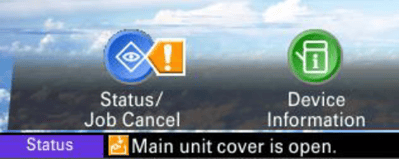
Older models: Alerts appear in the lower-left corner, such as: “Main unit cover is open”
Step 1: Open the Right-Side Door
- Use the handle on the right side of the device.
- This handle unlatches the internal locks for the cover.
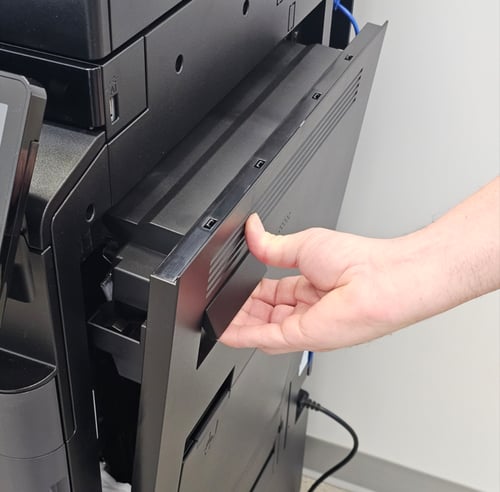
Step 2: Securely Close the Door
- Place your hand near the upper-middle area of the door (where the dots or grip indicators are located).
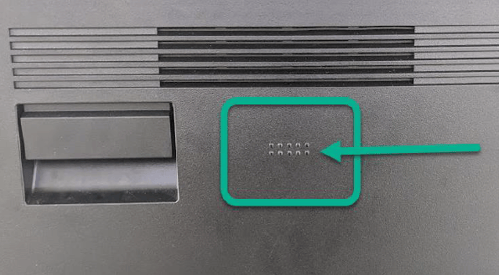
- Firmly close the door until you feel it fully latch
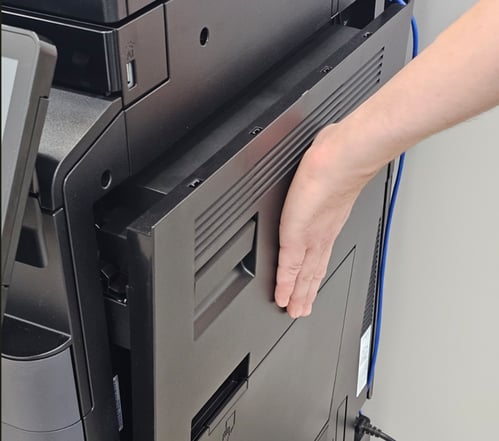
Step 3: Verify Proper Closure
- Make sure the door is not slightly ajar.
- Ensure the handle is fully returned to the closed position.
- Check that no other covers (front, rear, or side) are open.
Step 4: Confirm Recognition
- Once all covers are closed, the device should automatically detect the toner container and clear the error.