While Express Install is suitable for most scenarios, it may not be appropriate in cases such as bulk driver deployments or environments with network restrictions that prevent automatic driver detection.
Step 1: Identify Your Kyocera Printer Model
Before downloading anything, you need the model. You can usually find this on the printer’s front or top panel.
Step 2: Download the Correct Kyocera Driver
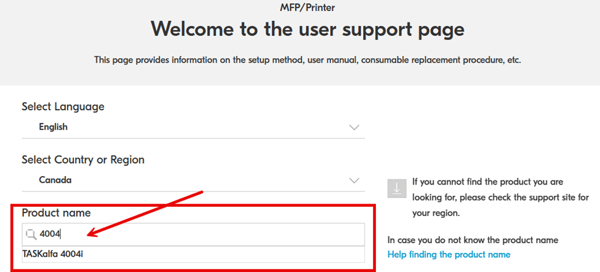
- Open a web browser and go to: https://kyocera.info/
- Search for your product and select it from the search results
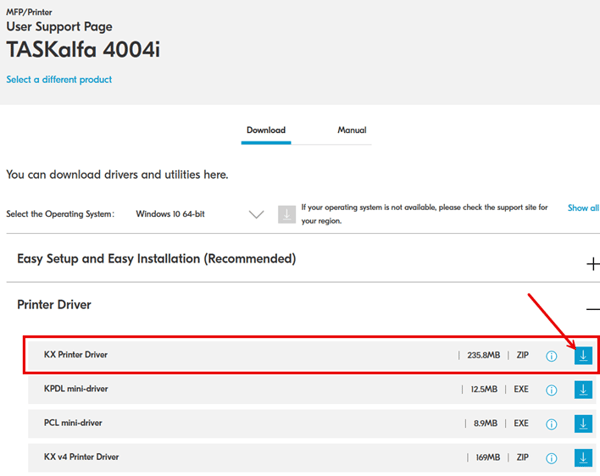
Step 3: Download the KX Print Driver
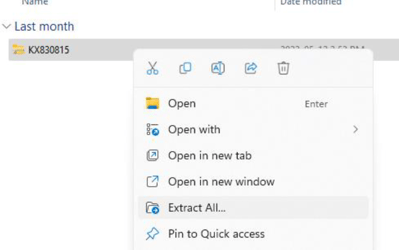
Step 4: Extract KX print driver package
Navigate to your Downloads folder and right-click on the KX driver file you downloaded and click on extract
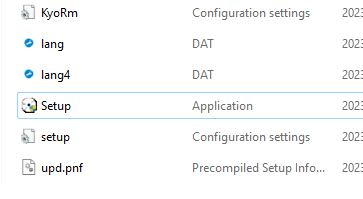
Step 5: Once it has fully extracted navigate into the folder and double-click on Setup.exe
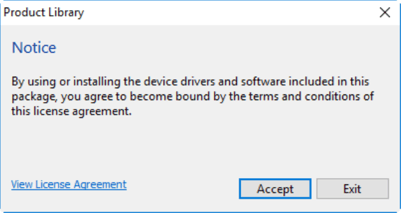
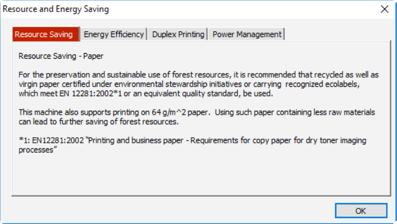
Step 6: Accept the End User Agreement and click OK on the Resource and Energy Saving box
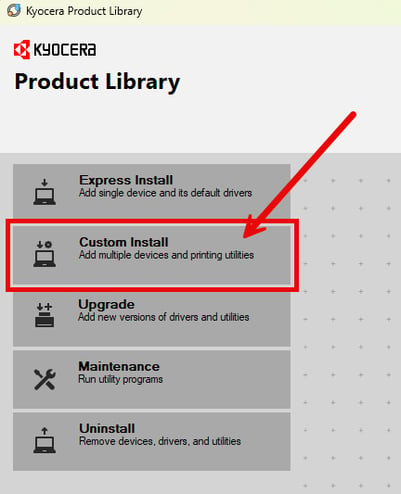
Step 7: Click Custom Install
Step 8: Add custom device
- Select Add custom device.
- Click the arrow to continue.
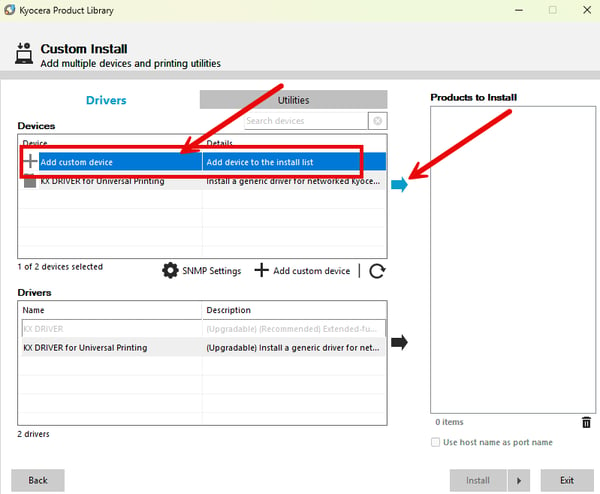
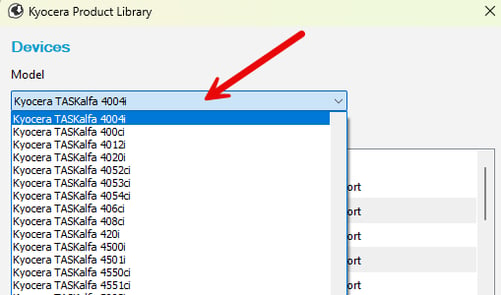
Step 9: Select Printer Model and IP Address
- Choose your printer model from the list.
- Select the IP address of your printer.
- Click OK.
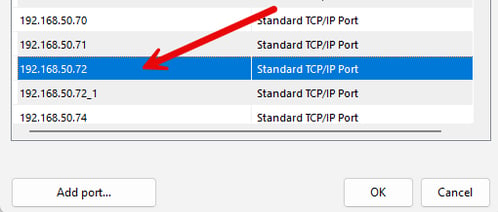
If the IP Address Is Not Listed
You must manually Add a Port. For instructions on manually creating a printer port, refer to: How to Manually Add a Printer Port
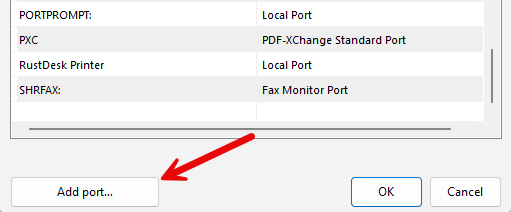
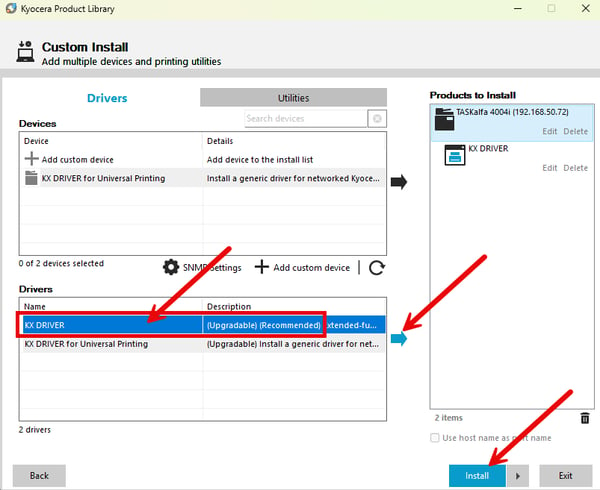
Step 10: Select your printer driver.
- Choose the KX Driver (recommended for full finishing and device features).
- Click the arrow, then select Install.
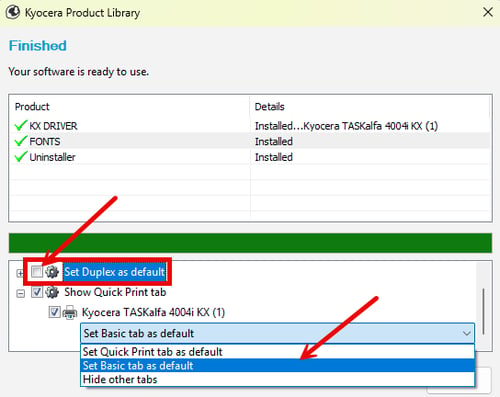
Step 11: Configure Initial Driver Settings
- Uncheck Set Duplex as Default.
- Click the + beside Show Quick Print Tab to expand the options.
- Select Set Basic Tab as Default.
- Click Finish.
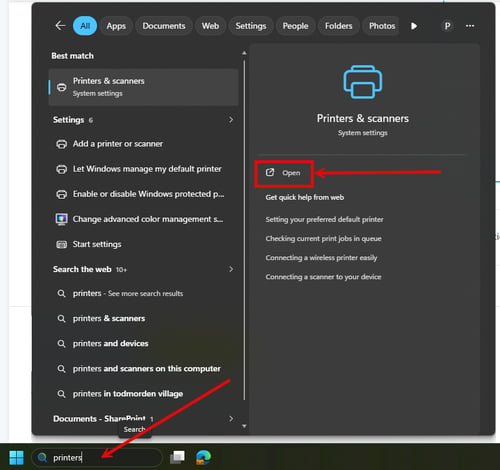
Step 12: Open the windows Start Menu and Type Printers & Scanners
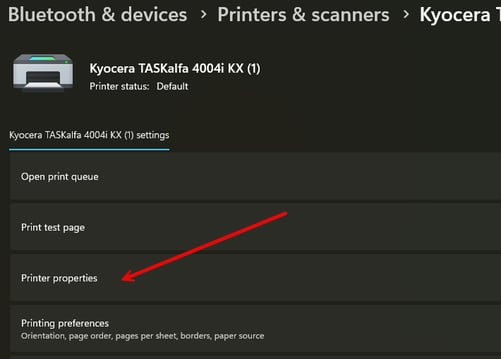
Step 13: Click on your Kyocera Printer and select Printer Properties
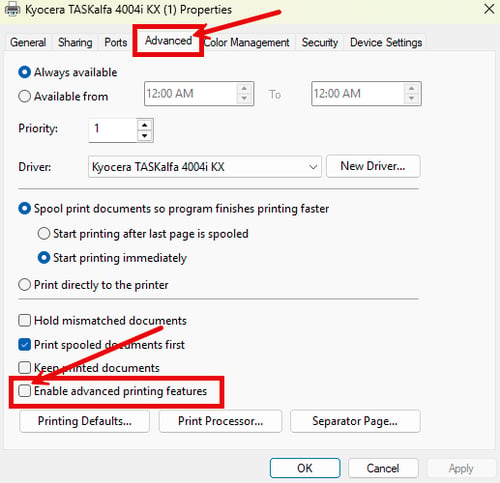
Step 14: Disable Advanced Printing Features
- Open the Advanced tab.
- Uncheck Enable Advanced Printing Features.
- Click Apply.
Step 15: Now set your printing defaults
- Advanced tab click Printing defaults. Set your printing defaults step 16
- General tab along the top click on Preferences. Set your printing defaults step 16
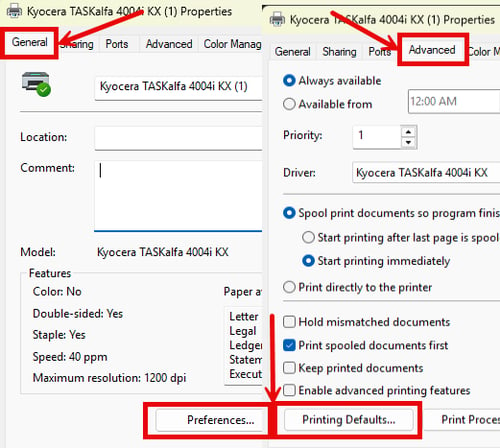
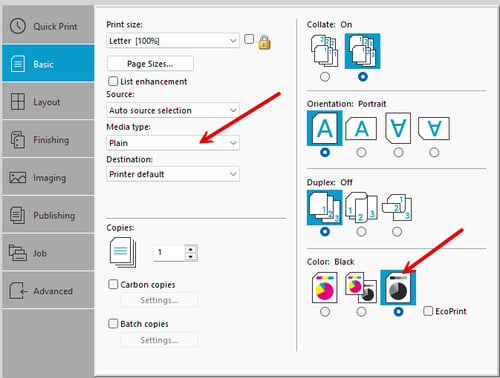
Step 16: Here you will set your printing defaults.
- Change the Media type to Plain.
- Change the Color option to Black.
- Click Ok to save and close.