Step 1: Identify Your Kyocera Printer Model
Before downloading anything, you need the model. You can usually find this on the printer’s front or top panel.
Step 2: Download the Correct Kyocera Driver
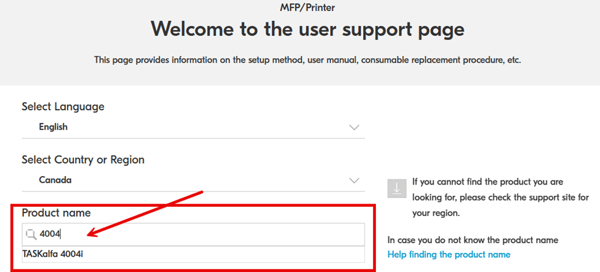
- Open a web browser and go to: https://kyocera.info/
- Search for your product and select it from the search results
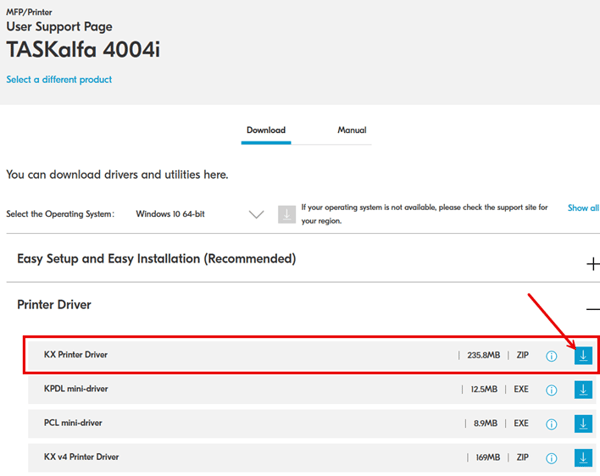
Step 3: Download the KX Print Driver
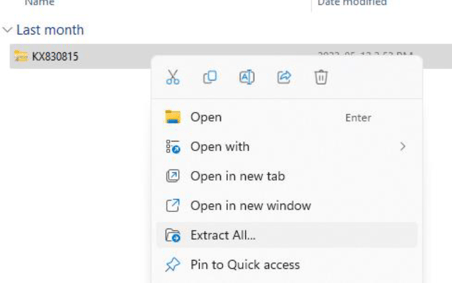
Step 4: Extract KX print driver package
Navigate to your Downloads folder and right-click on the KX driver file you downloaded and click on extract
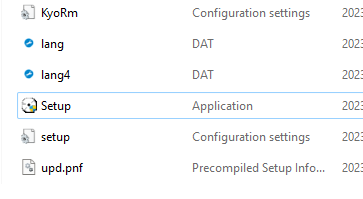
Step 5: Once it has fully extracted navigate into the folder and double-click on Setup.exe
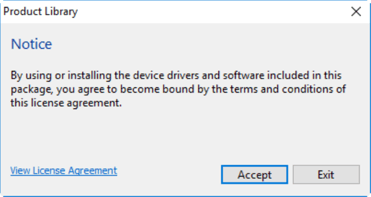
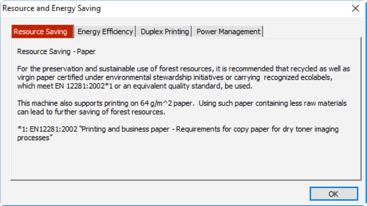
Step 6: Accept the End User Agreement and click OK on the Resource and Energy Saving box
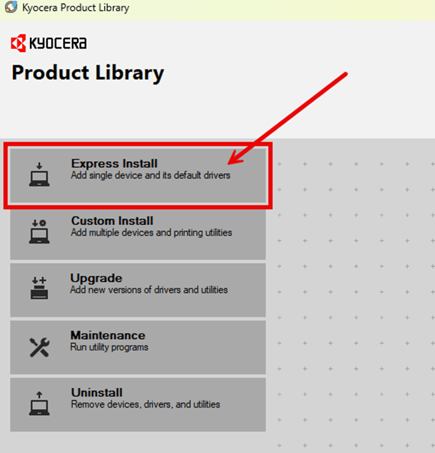
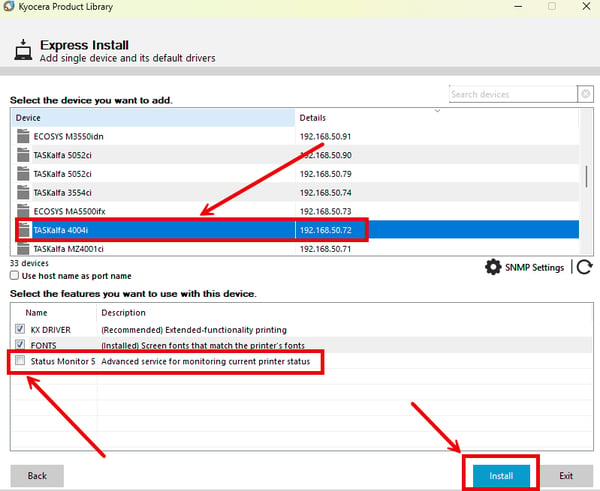
Step 7: Click Express Install
Step 8: Select your device from the list of discovered devices. (Ensure you are selecting the correct model and IP address). UNCHECK Status Monitor 5 and click Install
Step 11: Configure Initial Driver Settings
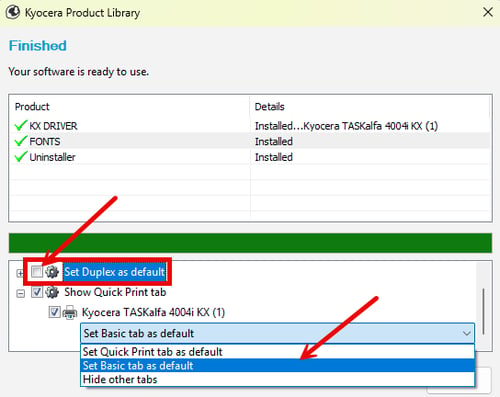
- Uncheck Set Duplex as Default.
- Click the + beside Show Quick Print Tab to expand the options.
- Select Set Basic Tab as Default.
- Click Finish.
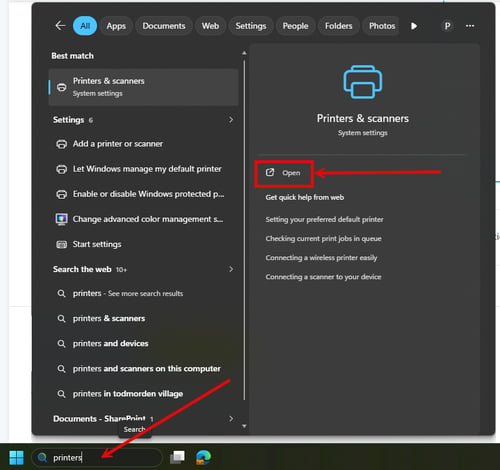
Step 10: Open the windows Start Menu and Type Printers & Scanners
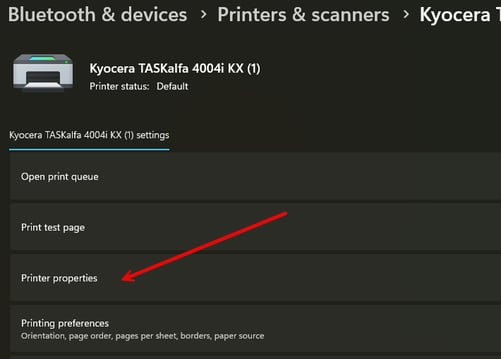
Step 11: Click on your Kyocera Printer and select Printer Properties
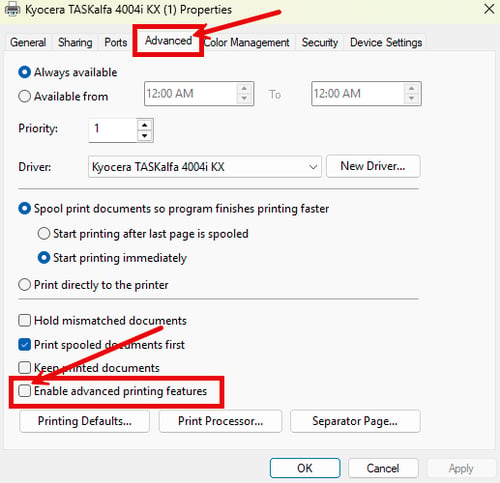
Step 14: Disable Advanced Printing Features
- Open the Advanced tab.
- Uncheck Enable Advanced Printing Features.
- Click Apply.
Step 13: Now set your printing defaults
- Advanced tab click Printing defaults. Set your printing defaults step 14
- General tab along the top click on Preferences. Set your printing defaults step 14
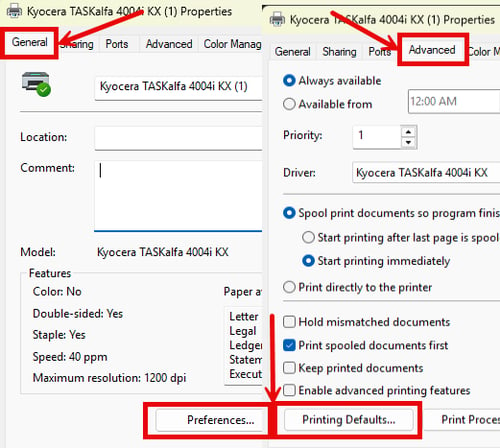
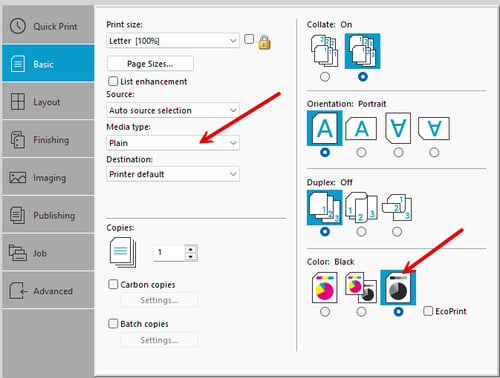
Step 14: Here you will set your printing defaults.
- Change the Media type to Plain.
- Change the Color option to Black.
- Click Ok to save and close.