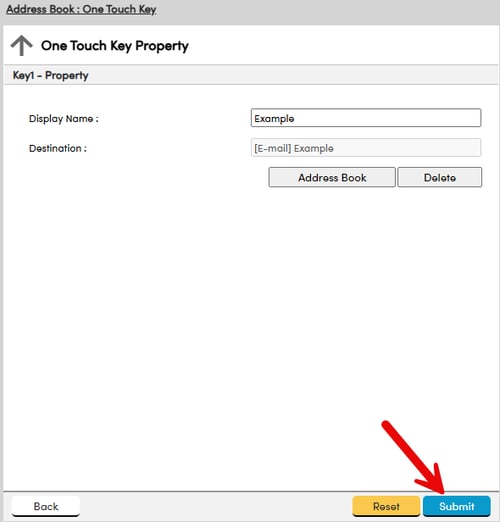
This guide explains how to update the users or destinations within the internal address book on a Kyocera TASKalfa MFP from the Command Center RX Web Portal. This Guide will also show how to edit or update the One-Touch Keys.
Note: Updating the Address Book will NOT update the equivalent One-Touch Key. Follow this guide to ensure the One-Touch Key gets updated with the newly updated Address Book user.
Step 1: Find the Network (IP) Address of your Kyocera MFP
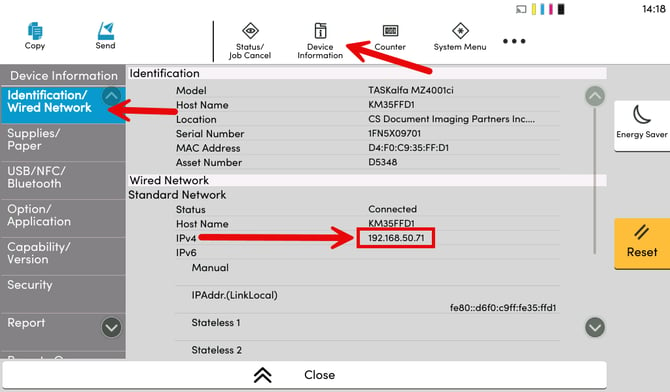
- On the Kyocera touchscreen, select the Device Information icon in the top menu.
- Ensure Identification/Wired Network tab on the left side of the screen is selected.
- Take note of the IPv4 Number to the right.
- If using a WiFi connection - Select Wireless Network Tab on the left and look for the Wireless IPv4 number.
Step 2: Using the IPv4 address above, connect to the Command Center RX Web Portal
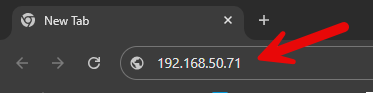
- On your Windows or Mac Computer, open a web browser such as Google Chrome.
- In the top URL or Address Bar, type in the IP Address gathered earlier. It will be in the format similar to x.x.x.x
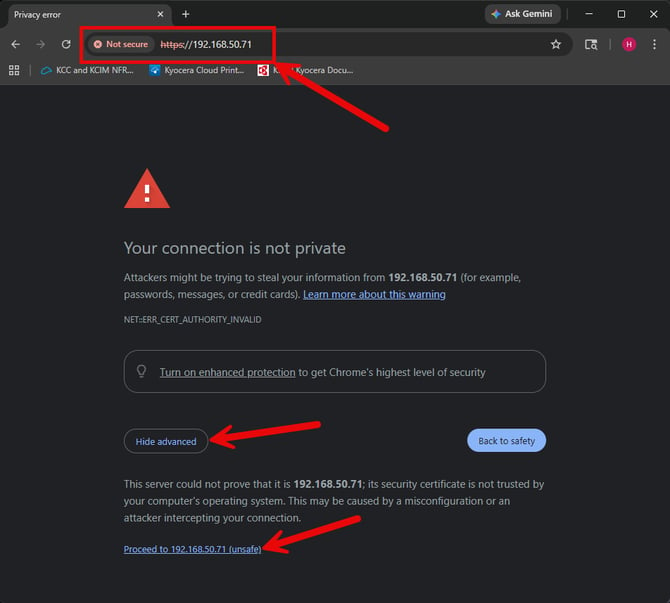
- Note - the first time you navigate to this site it will likely prompt you saying it is not private. This is normal behavior as it is securely only accessible from within your network and does not follow conventional external website standards. If you have questions or concerns please reach out to your corporate IT
- Expand the Show Advanced button.
- Select Proceed to [x.x.x.x].
Step 3: Make Changes to your Address Book within Command Center RX
-
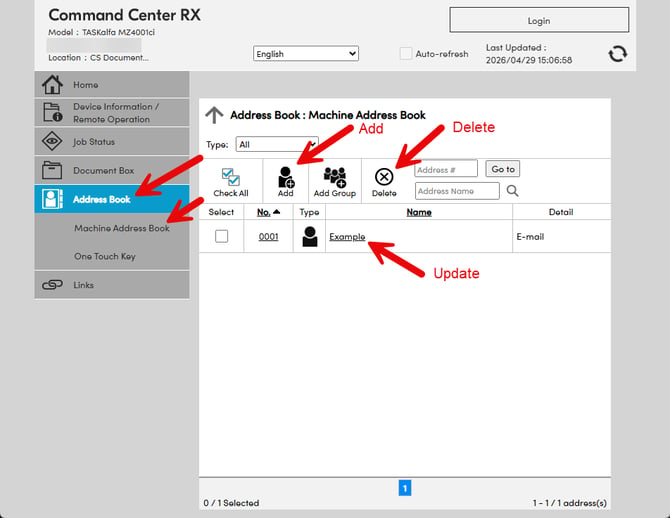
With the Command Center RX Web Portal open, Navigate to Address Book on the left side menu.
- Select Machine Address Book.
- From here you can preform the following three actions:
- Add a new User by selecting Add - this will open a new window where you can add the Name, Email or SMB connection if you wish.
- Delete a user by checking off the check box beside the user you wish to delete, then selecting Delete.
- Update a user's info by selecting on the user's name - this will open a new window where you can edit any of the fields, select Submit when finished.
Step 4: Make Changes to your One Touch Keys within Command Center RX
-
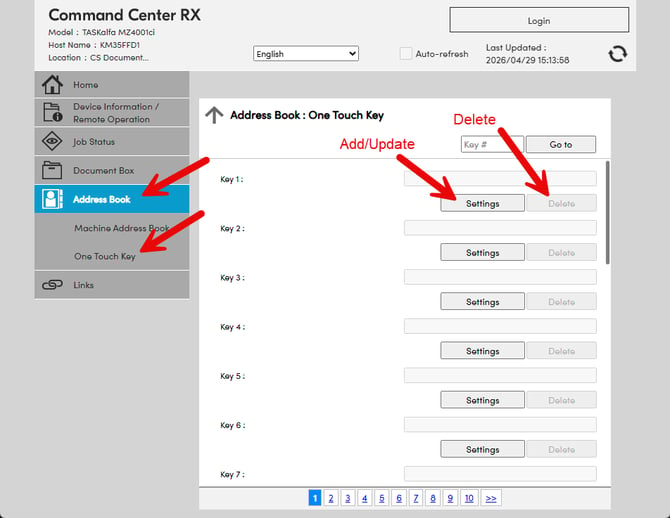
With the Command Center RX Web Portal open, Navigate to Address Book on the left side menu.
-
Select One Touch Key.
- From here you can preform the following two actions:
- Add a new User or update an existing key location by selecting Settings - We will follow along with this down below
- Delete a user by selecting Delete beside the user you wish to remove.
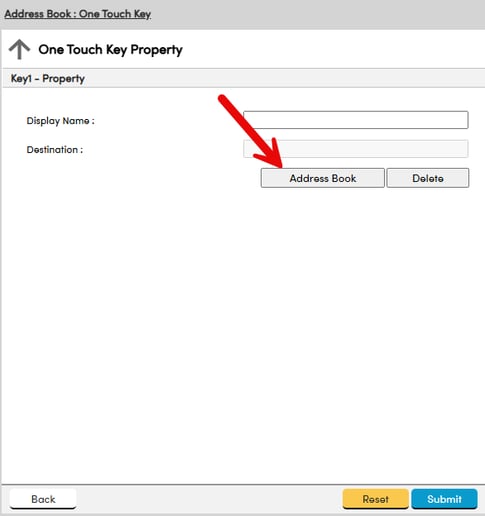
Step 5: Attach Address Book user to this One Touch Key
- Select Address Book.
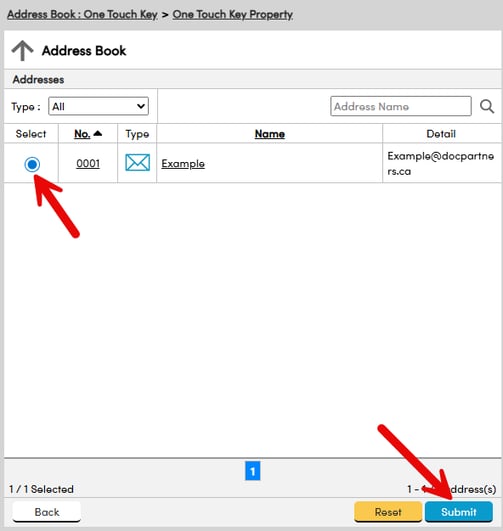
Step 6: Select the Address Book Entry you wish to save
- Select the toggle button beside the User.
- Click on Submit.
Step 7: Confirm One-Touch Key Info
- Confirm the setting you have selected to save into the One Touch Key.
- Select Submit.