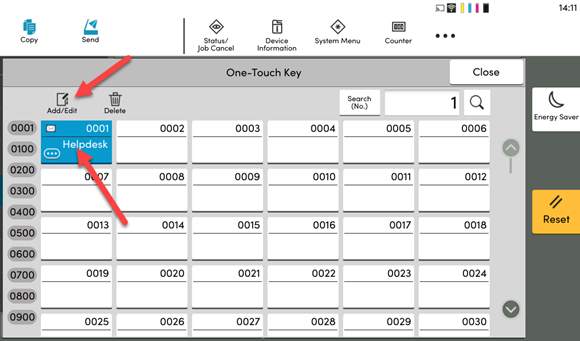
This guide explains how to update a user or destination within the internal address book on a Kyocera TASKalfa MFP. Once the new Address Book is saved - it can also be re-added to the One-Touch Keys.
Note: Updating the Address Book will NOT update the equivalent One-Touch Key. Follow this guide to ensure the One-Touch Key gets updated with the newly updated Address Book user.
Step 1: Add destination or email address within Send Menu.
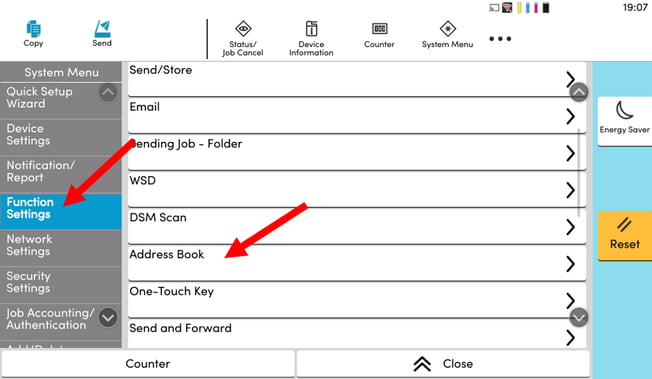
- On the Kyocera touchscreen, select the System Menu icon in the top menu.
- Select the Function Settings tab on the left side of the screen.
- Scroll down and select the Address Book option.
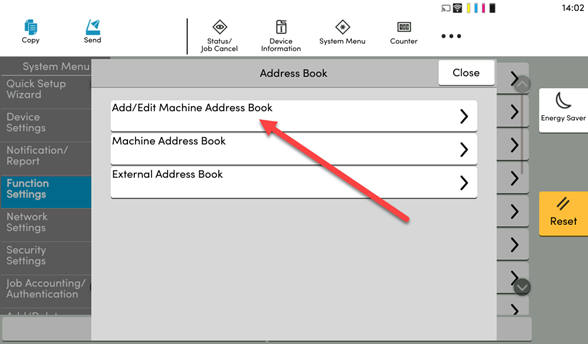
Step 2: Select Add/Edit Machine Address Book
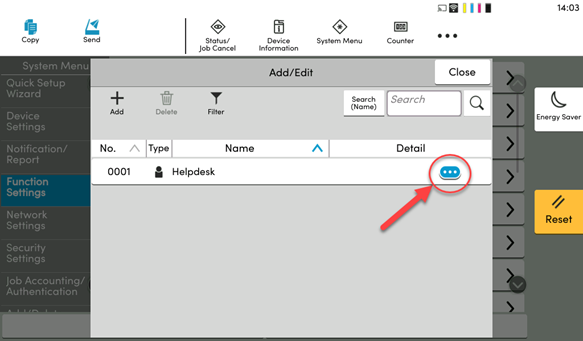
Step 3: Select the User you wish to Edit
-
With the Address Book now open, find the contact you wish to update and tap on the Blue button with three white dots to Edit.
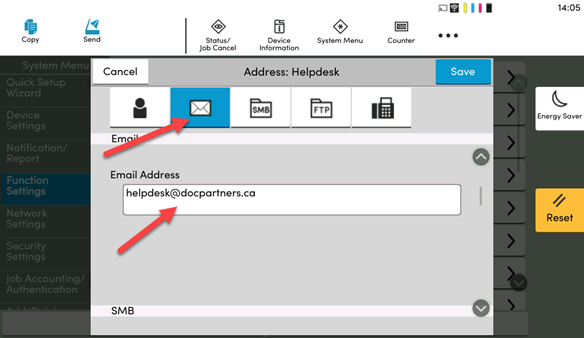
Step 4: Update User Properties
- Update the Name of the recipient.
- Select the envelop icon to update the Email Address
- Then tap on Save in the top right.
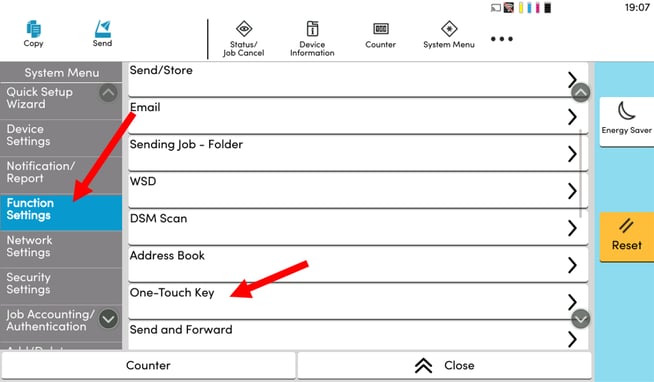
Optional - Step 5: Similar to Step 2 above, Select One-Touch Key.
- On the Kyocera Home screen, select the System Menu icon in the top menu.
- Select the Function Settings tab on the left side of the screen.
- Scroll down and select the Address Book option.
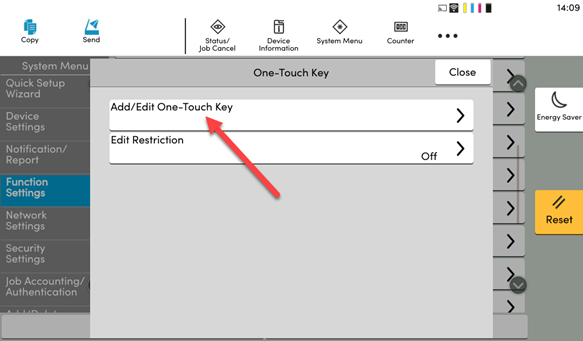
Step 6: Tap on Add/Edit One-Touch Key.
Step 7: Confirm One-Touch Key Destination Email
- With the One-Touch Keys open, Select the one you wish to edit or remove.
- With that Highlighted Blue, select Add/Edit to edit it.
- From there select the destination field and select the newly updated address book destination you wish to save as a One-Touch Key.