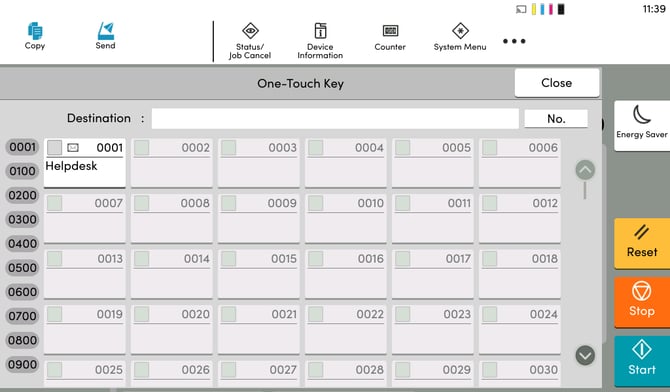
This guide explains how to set One-Touch Keys to display first when opening the Send menu. By default the system will show the destination screen. changing this setting will reduce time needed to send a document if users are always navigating to One-Touch Keys by default.
Turning on One-Touch Key option
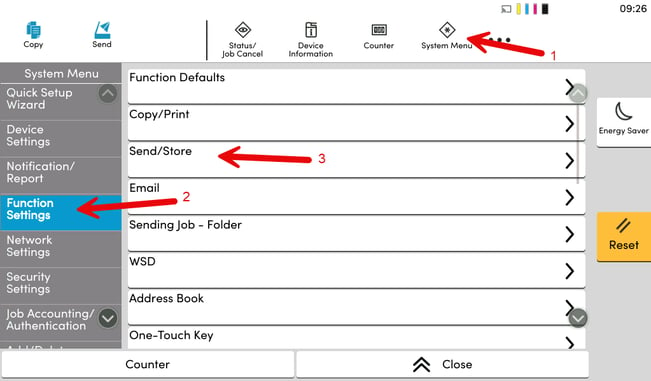
- Select System Menu in the top menu.
- Navigate to Function Settings.
- Then Select Send/Store.
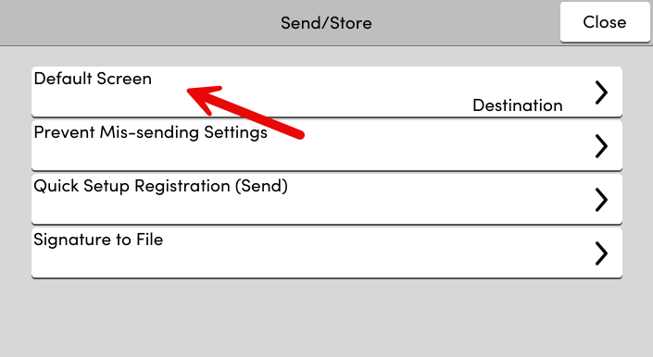
- Navigate to Default Screen.
- Select One-Touch Key.
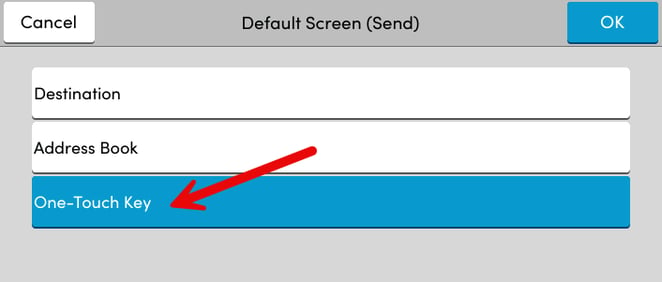
- Ensure One-Touch Key is selected and press OK. - Now the One-Touch Key Menu will display first when in the Send Menu. Please Note: this may take a moment to update.