This guide explains how to scan different types of media—such as receipts, letter‑size pages, and book pages—into a single file using a Kyocera multifunction printers Continuous Scan Feature.
Step 1: Turn on the Continuous Scan Feature
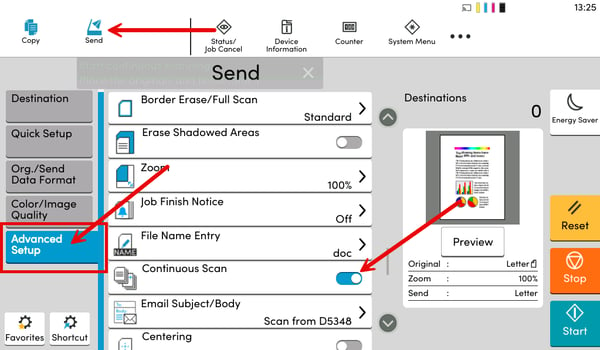
- On the Kyocera touchscreen, select the Send icon.
- Select the Advanced Setup tab on the left side of the screen.
- Select Continuous Scan and toggle the option On.
Step 2: Choose Scan Settings
- Select your scan destination
- Adjust any other scan settings as needed (file format, resolution, color, etc.).
Step 3: Scan the First Pages
- Carefully load your document onto the scanner glass or into the document feeder.
- Note: You can load multiple pages at once in the document feeder.
- Press Start to begin scanning.
Step 4: Remove Scanned Pages
- The scanner will process the current page(s) and then pause.
- Remove the scanned pages from the glass or document feeder.
Step 5: Scan Additional Pages
- Load the next page or set of pages onto the scanner glass or into the feeder.
- Adjust any scan settings if needed for these pages (for example, 2-sided).
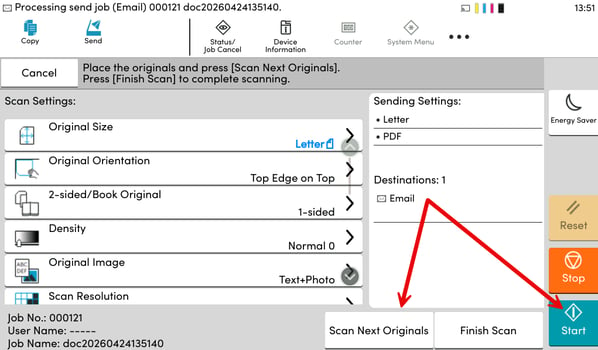
- Select Scan Next Originals or press Start to continue scanning.
- Repeat this step for all remaining documents.
Step 6: Finish the Scan
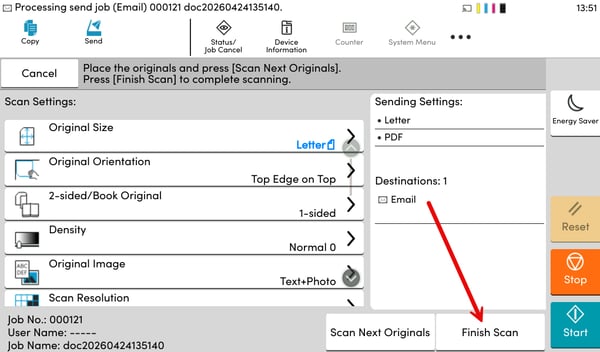
- Once all documents have been scanned, select Finish Scan to complete the process and create a single combined file.