This guide explains how to Recall a previously used destination when scanning documents. Also how to pull up the destination history and enabling the feature if not enabled already.
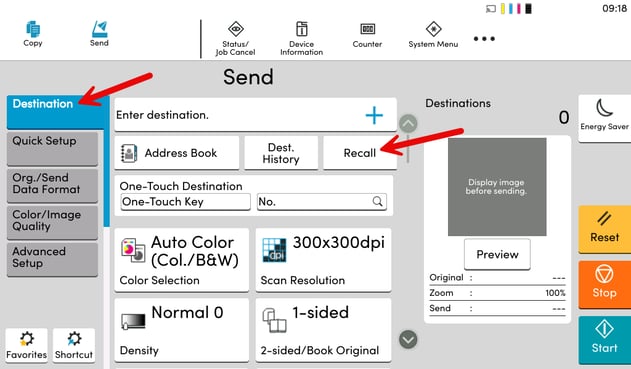
Option 1: Selecting the Recall Button
- On the Kyocera touchscreen, select the Send icon.
- Ensure you are still on the Destination tab on the left side of the screen.
- Select Recall.
- This will populate the destination with the last used destination. If one hasn't been used recently then this option will be greyed out.
- If this option is missing entirely, the feature may be turned off - please see Turning on Recall option below.
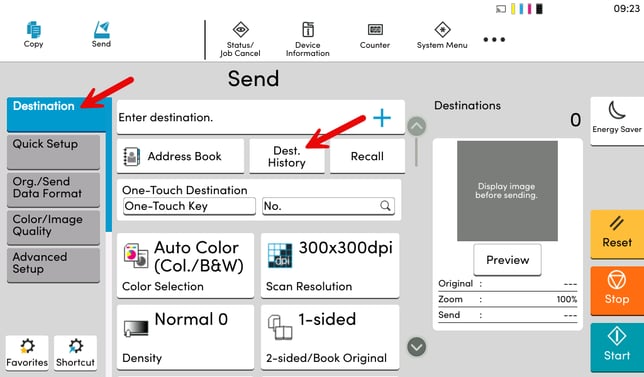
Option 2: Selecting the Destination History Button
- On the Kyocera touchscreen, select the Send icon.
- Ensure you are still on the Destination tab on the left side of the screen.
- Select Dest. History.
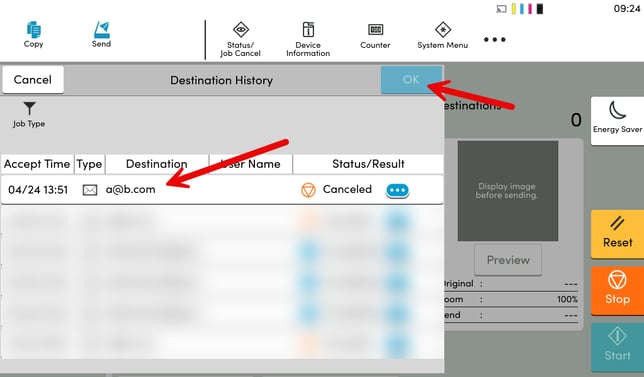
- Select the destination you wish to send to and press OK.
- This will populate the destination with the chosen destination. If one hasn't been used recently then this option will be greyed out.
Turning on Recall Destination option
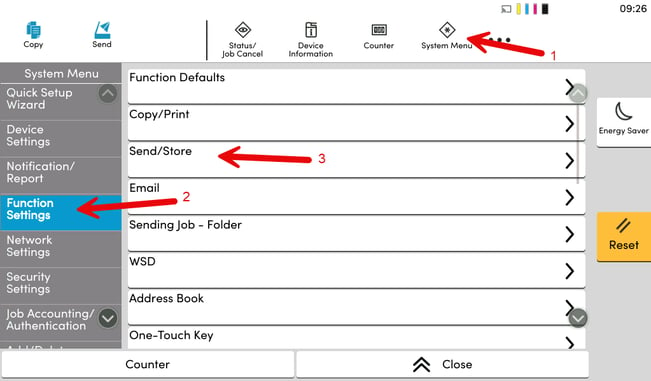
- Select System Menu in the top menu.
- Navigate to Function Settings.
- Then Select Send/Store.
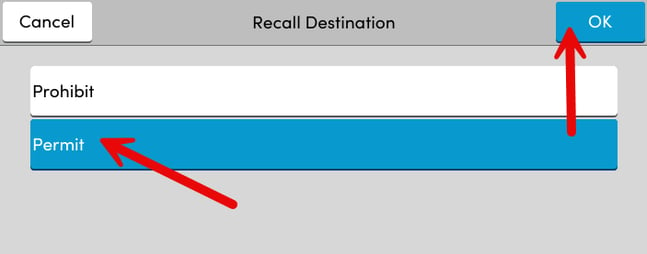
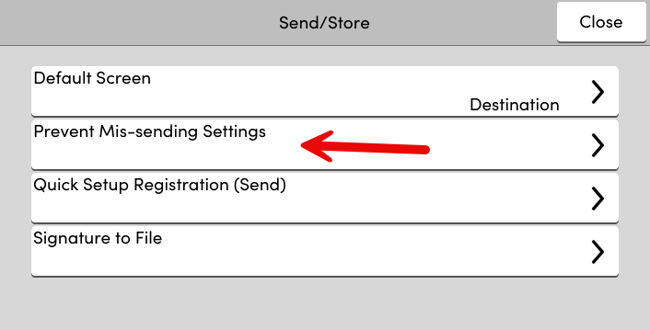
- Select Prevent Mis-sending Settings.
- Navigate to Recall Destination.
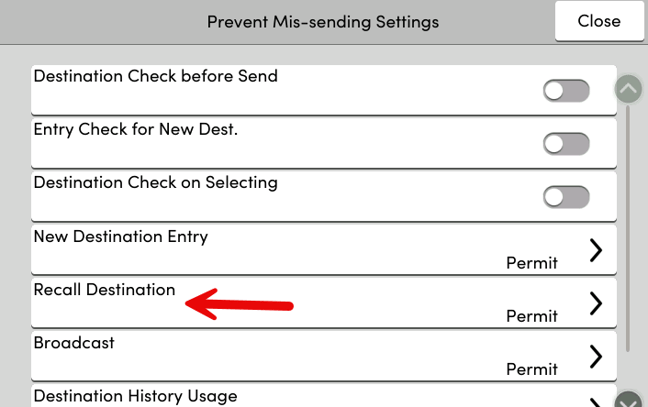
- Ensure Permit is selected and press OK. - Now the Recall destination button will be visible when in the Send Menu.