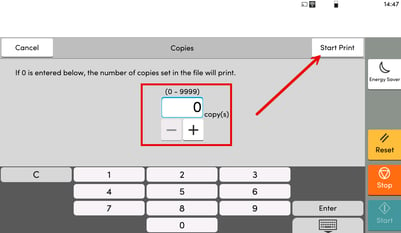
This guide explains how to print a document using the Kyocera Private Print function.
The Private Print feature allows you to send a print job to a Kyocera device without printing immediately. The job is held securely on the printer until you release it at the device or until it automatically times out.
This example uses Microsoft Word with the Kyocera KX Print Driver.
Step 1: Prepare your document
- Go to File → Print
- Select your Kyocera device
- Click Printer Properties or Preferences
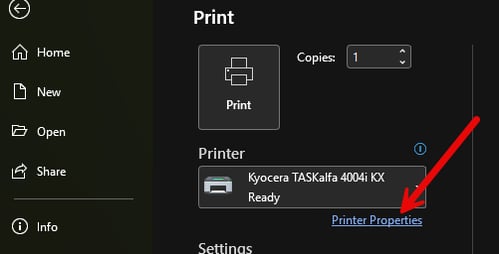
Step 2: Enable Private Print
- In Printer Properties, select the Job tab on the left
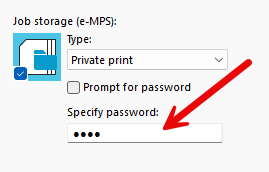
- Enable Job Storage
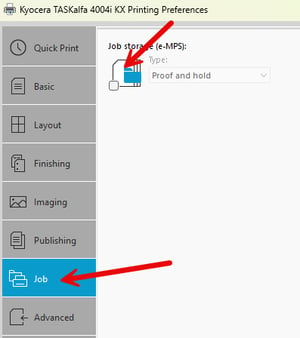
- Choose Private Print as the job type
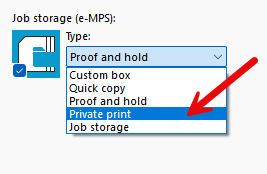
- Enter a password
- Password must be at least 4 alphanumeric characters
- You will need this password to release the job at the printer
- Click OK
Step 3: Print the Document
- Select any additional print options you need (e.g., duplex, number of copies, color options)
- Click Print
- Your document is now sent to the printer and stored securely, waiting to be released.
Step 4: Release the Print Job at the Kyocera Device
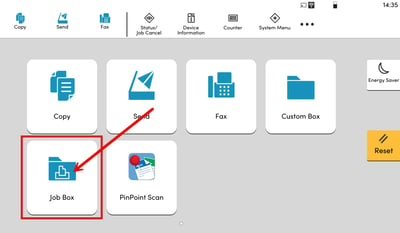
- On the printer screen, tap the Job Box icon
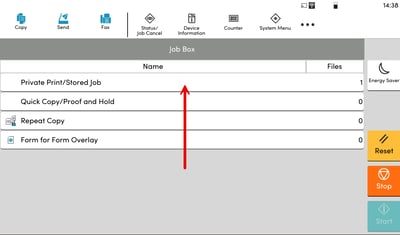
- Select Private Print / Stored Job
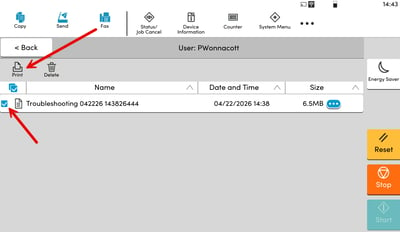
- Choose your computer username (this links your stored jobs)
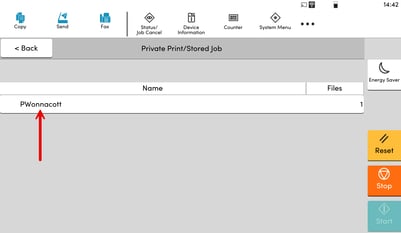
- Select the print job(s) you want to release
- Tap Print
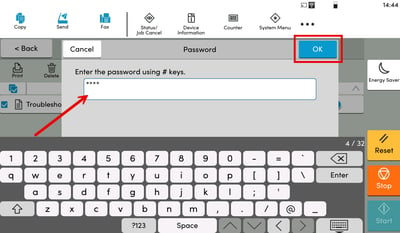
- Enter the password you assigned earlier and press OK
- (Optional) Adjust the number of copies if needed
- Press Start Print