|
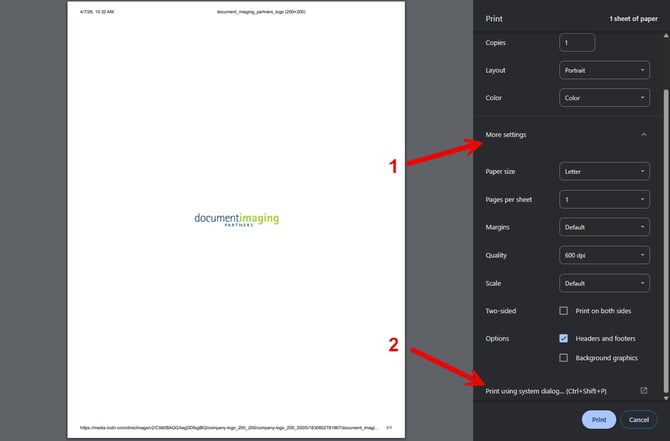
1. Within Chrome (or another program), open the Print Menu with Ctrl + P or select print. Open the More Settings dropdown and select Print using System Dialog…
|
|
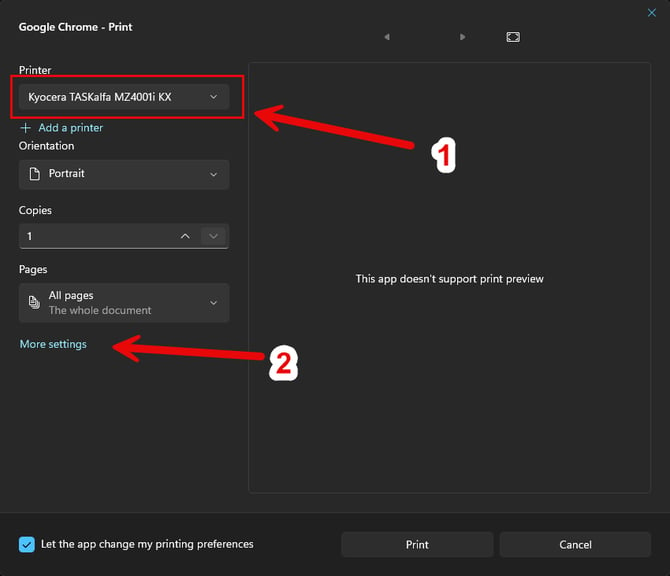
2. In the new window, ensure you have the correct printer highlighted and select Preferences on the right-hand side. If you are running Windows 11 as shown below, then the menu might look different, in this case select More Settings at the bottom.
|
|
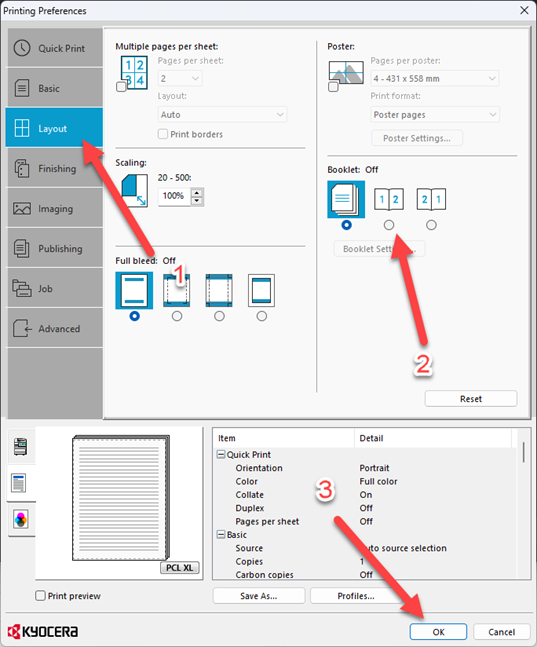
3. This will open the Kyocera Print settings if you have the correct printer selected in the step before. Select Layout from the left and check off one of the two Booklet options: from the right. The difference between these two is in which order you wish the pages to go in. Select OK when all your settings look correct.
|