
This guide explains how to correctly print cardstock or label sheets from Microsoft Word using a Kyocera Device, helping prevent jams, poor print quality, or damage to labels.
Before You Begin (Important)
To help prevent jams, poor print quality, or damage to labels.
- Only use laser‑compatible cardstock or labels
- Be sure to feed labels from the multipurpose tray.
- Do not reuse label sheets as the adhesive may come in contact with the internal components. Glue or a label may come off in the machine causing failure.
Step 1: Prepare the Printer Tray
- Open the multipurpose tray (MP tray) and load the cardstock or labels:
- Labels: Face up, top edge first (varies by labels—check Labels diagram)
- Cardstock: Print side face up
- Adjust the paper guides so they fit snugly.
- On the MFP screen you can set the media type to to Cardstock or Labels
Step 2: Set Media Options in Microsoft Word
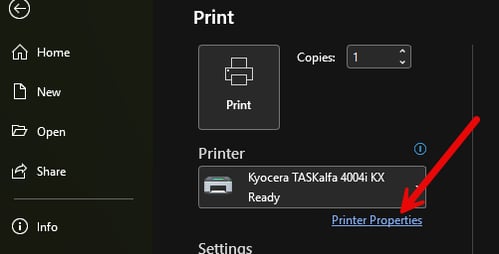
- Go to File → Print
- Select your Kyocera device
- Click Printer Properties or Preferences
Step 3: Configure Kyocera Printer Settings
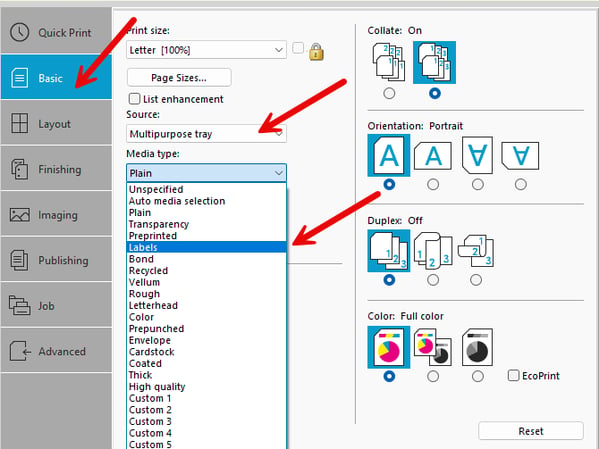
Inside Printer Properties:
- Select multipurpose tray (MP tray) (recommended)
Choose Media Type (Most Important Setting)
- Labels → for label sheets
- Cardstock or Thick Paper → for cardstock
⚠️ Never leave Media Type as “Plain” when printing labels or cardstock.
Step 4: Print a Test Page
- We suggest print one page only
- Watch for: Feeding issues, Toner smudging or Label peeling or curling
- If everything looks correct, continue printing.