
Format Your Document
- Set your document size to Statement (5.5" × 8.5").
- This ensures each page will fit neatly into a booklet format when printed.
- Use portrait orientation.
Set Up Your Pages
- Your total page count should be a multiple of 4 (e.g., 8, 12, 16).
- This is required because each sheet folds into 4 booklet pages.
- If needed, add blank pages at the end to meet this requirement.
In Adobe Acrobat / PDF
1. Open Print Settings in Adobe Acrobat
- Go to File → Print
- Select your printer
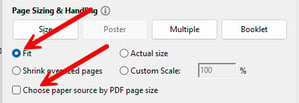
- Under Page Sizing & Handling:
- Choose Fit
- Uncheck “Choose paper source by PDF page size” (if selected)
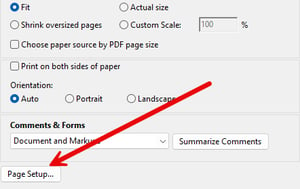
- Set Orientation to Auto

- Click Page Setup (bottom left)
- Set:
- Paper Size → Statement (5.5" × 8.5")
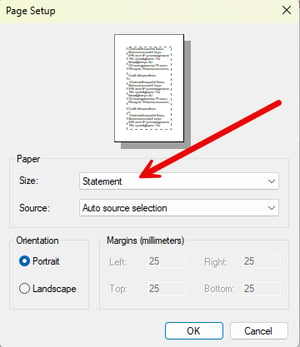
- Paper Size → Statement (5.5" × 8.5")
- Click OK
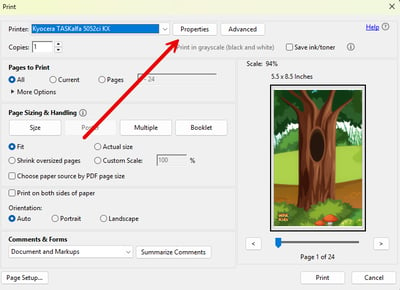
3. Configure Printer Properties
- Click Properties (or Printer Properties)
- Under the Basic tab:
- Set Print Size to Letter (8.5" × 11")
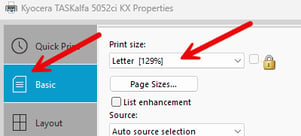
- Set Print Size to Letter (8.5" × 11")
- Go to the Layout tab
- Select:
- Booklet → Left Edge Binding
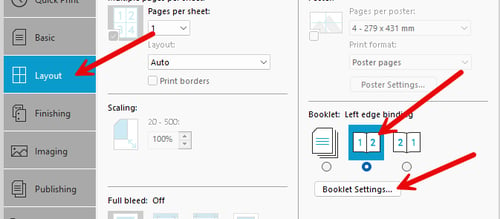
- Booklet → Left Edge Binding
- Click Booklet Settings:
- Choose:
- Staple and Fold or
- Fold Only
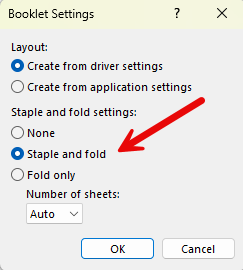
- Choose:
- Click OK
5. Final Adjustments
- Set:
- Number of copies
- Colour or Black and White