This guide explains how to name a document when scanning on a Kyocera multi‑function printer.
Step 1: Open File Name Entry
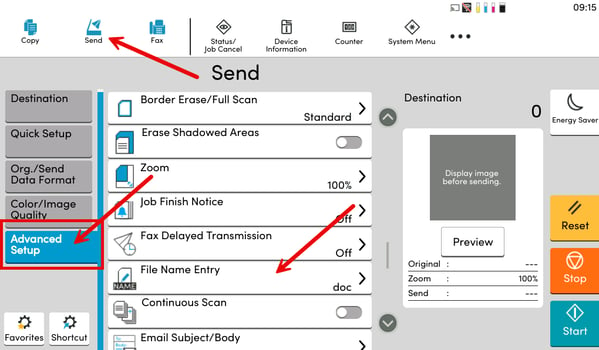
- On the Kyocera touchscreen, select the Send icon.
- Select the Advanced Setup tab on the left side of the screen.
- Select File Name Entry.
Step 2: Enter the File Name
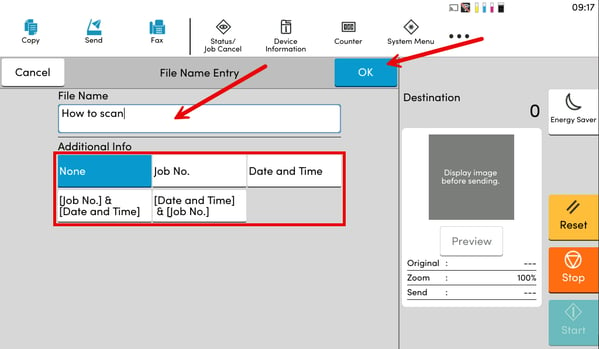
- Select the File Name text box.
- Type the name you would like to give your scanned document.
- Under Additional Info, choose one of the following (optional):
- Date & Time – adds the scan date and time to the file name
- None – uses only the file name you entered
- When finished, select OK.
Step 3: Scan the Document
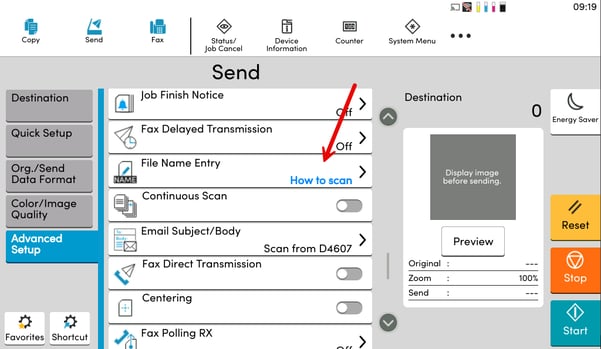
- Confirm your chosen file name appears in blue.
- Adjust any other scan settings if needed.
- When ready, select Start in the bottom‑right corner to scan.