
This guide explains how to manually add a Standard TCP/IP printer port in Windows. This is typically required when the printer’s IP address does not appear automatically during driver installation.
If you are adding a port during installing driver installation and are using the custom install option please skip to step 4
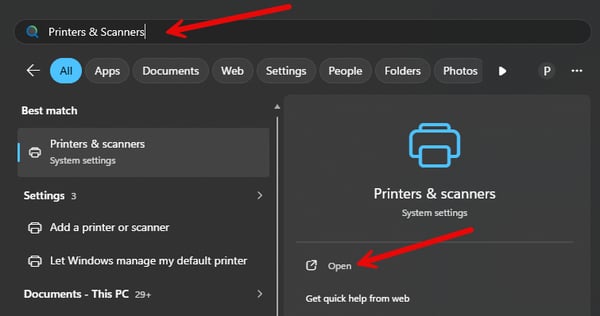
Step 1: Open Printers & Scanners
- Click the Windows Start Menu.
- Type Printers & Scanners.
- Select Open
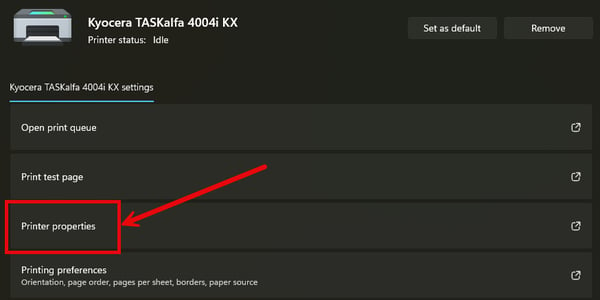
Step 2: Open Printer Properties
- Locate your Kyocera printer in the list.
- Click on the printer.
- Select Printer Properties.
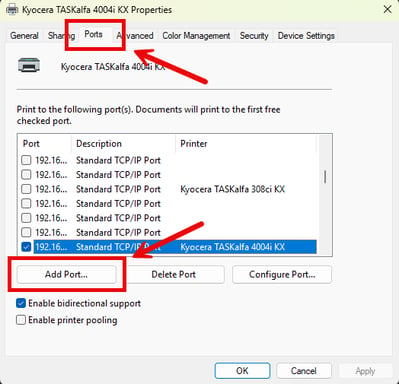
Step 3: Open the Ports Tab
- In the Printer Properties window, click the Ports tab.
- Click Add Port…
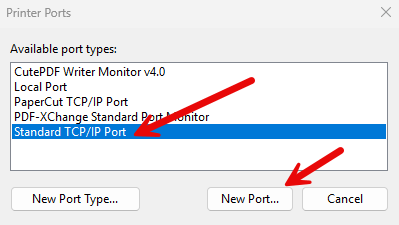
Step 4: Add a Standard TCP/IP Port
- Select Standard TCP/IP Port.
- Click New Port…
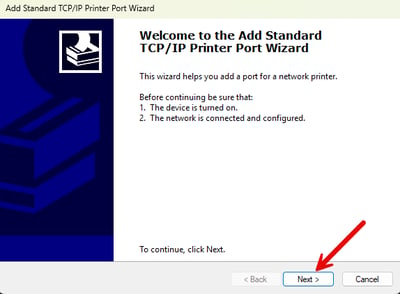
- The Add Standard TCP/IP Printer Port Wizard will open.
- Click Next.
Step 5: Enter Printer IP Address
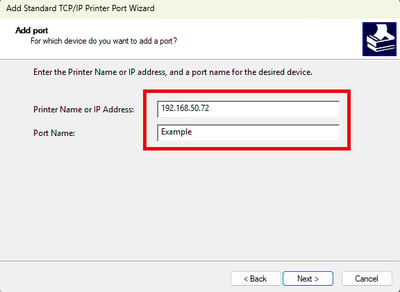
- In the Hostname or IP address field, enter the printer’s IP address.
- The Port name field will auto-fill (you can leave it as is).
- Click Next.
Step 6: Complete the Port Setup
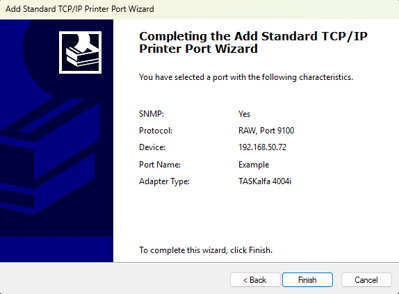
- Windows will attempt to create the port.
- When the wizard completes, click Finish.
Step 7: Verify Port Selection
- Back in the Ports tab, ensure the newly created port is checked.
- Click Apply, then OK.
Step 8: Continue Driver Installation
Return to your printer driver installation:
- Select the newly added port when prompted.
- Continue installation normally.