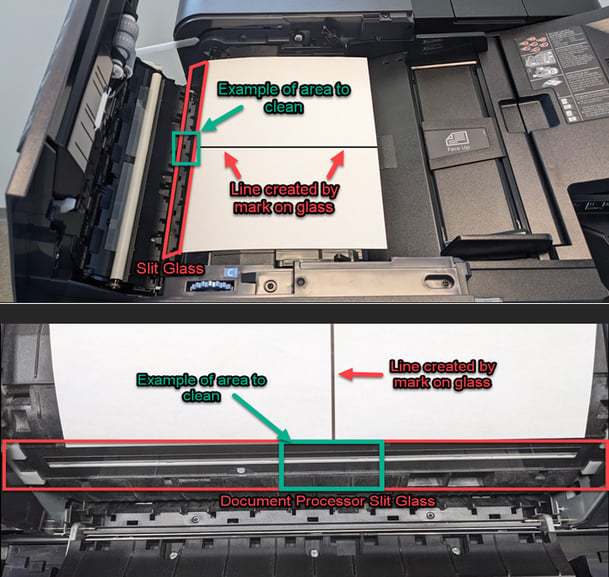
If you notice lines appearing on copies or scanned documents, the issue is typically caused by debris on the scanner glass surfaces.
When lines appear on the front or back side of the page while copying or scanning using the document feeder, follow the steps below:
Front Side Cleaning Instructions
- Use a lint-free cloth lightly sprayed with an alcohol-based cleaner (such as an eyeglass wipe).
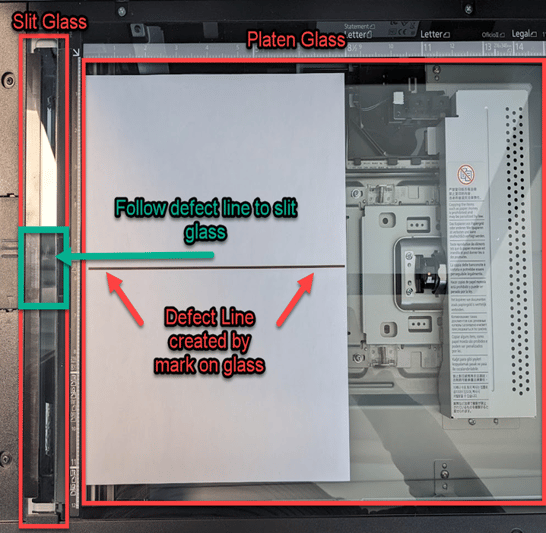
- Place the document with the visible defect line face up on the platen glass, as shown below.
- Locate the defect line on the page and trace it toward the slit glass (the narrow strip of glass beside the main platen).
- Clean the specific area of the slit glass that aligns with the defect line.
Refer to the example below for guidance.
Back Side Cleaning Instructions
- Open the document processor (feeder) lid.
- Place the document with the visible defect line face up, as shown below.
- Use a lint-free cloth lightly sprayed with an alcohol-based cleaner (such as an eyeglass wipe).
- Locate the defect line on the page and trace it toward the slit glass.
- Clean the specific area of the slit glass that aligns with the defect line.
Refer to the example below for guidance.