|
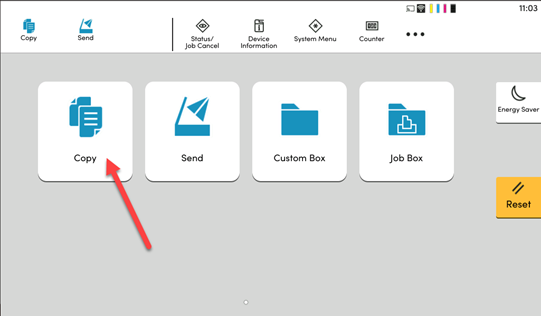
1. Place your document in the document processor or on the glass. Within the printer’s display panel, Select the Copy Menu.
|
|
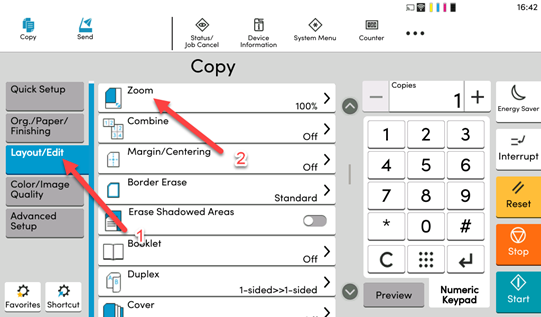
2. In the new window, Select the Layout/Edit tab on the left-hand side. Then select the Zoom option in the menu.
|
|
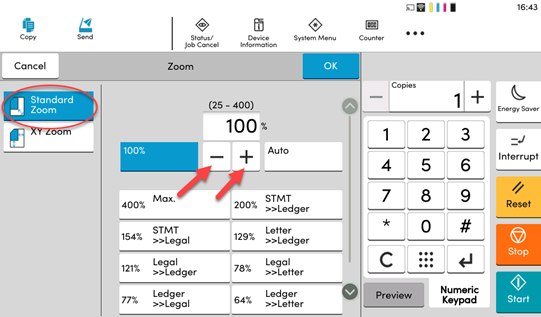
3. Ensure Standard Zoom is selected if using Auto Zoom. Press the + or – button to change the Magnification or Tap the Percentage Box above to type in a desired amount using the number keys. Select OK to save changes.
|
|
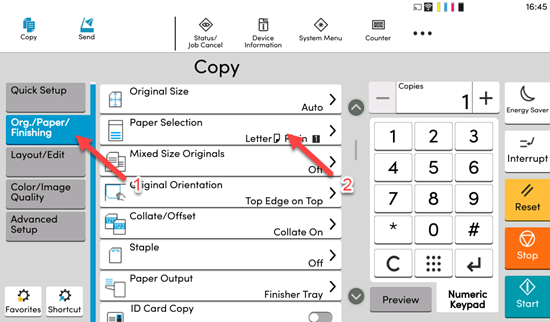
4. Press the Org/Paper/Finishing option on the left and find Paper Selection. Select this and ensure Letter size (or the desiered paper size) is selected for paper size. Select Start in the bottom right to start Copying.
|
|
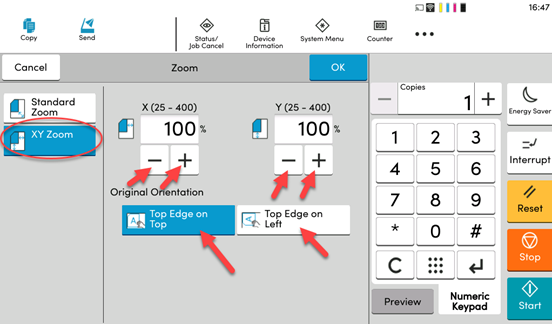
Optional: On Step 3 above - When using XY Zoom, select XY Zoom. press the + or – buttons to change the desired scale. Select one of the options for Original Orientation depending on how your paper is sitting on the Scan Bed. Select OK to save changes and proceed to step 4 above.
|