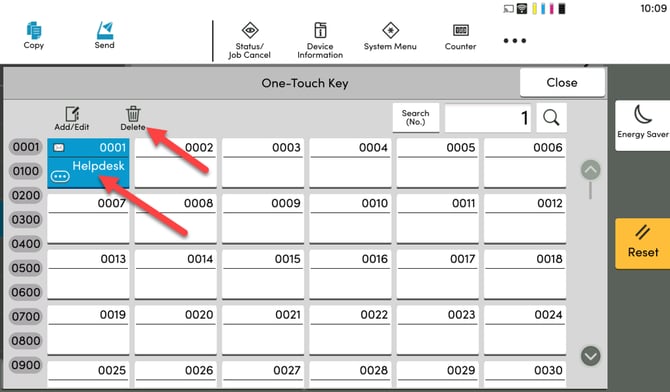
This guide explains how to delete a user or destination from the internal One-Touch Keys on a Kyocera TASKalfa MFP.
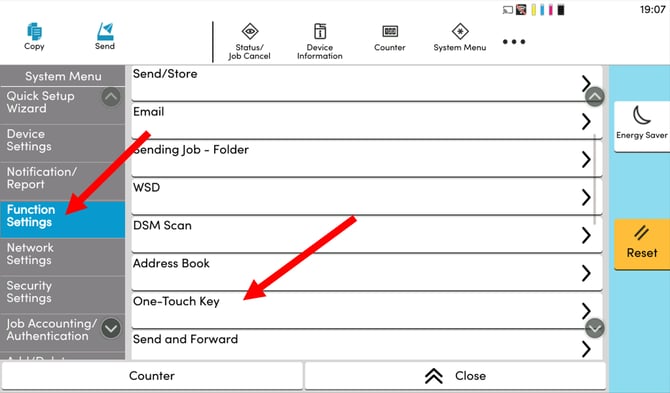
Step 1: Navigate to the One-Touch Key Settings from System Menu.
- On the Kyocera touchscreen, select the System Menu icon along the top.
- Select the Function Settings tab on the left side of the screen.
- Scroll down and select the One-Touch Key option.
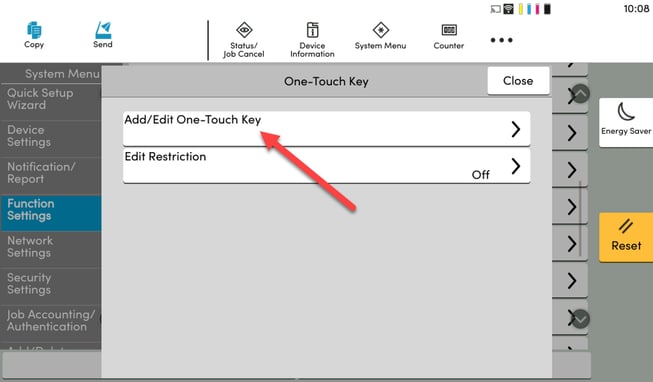
Step 2: Select Add/Edit One-Touch Key
Step 3: Delete the User you wish to remove
-
With the One-Touch Keys now open, find the contact you wish to remove and select it and ensure it is highlighted. Then select the Delete Button above it.