
Follow these steps on the Kyocera device touch screen to create a new Custom Box. A Custom Box allows you to save files directly to the Kyocera hard drive for later printing.
1. Open Custom Box Settings
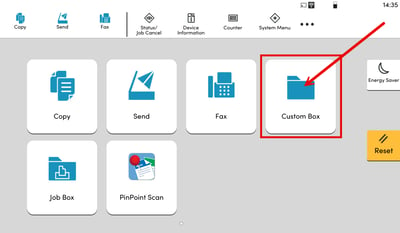
- Tap the Custom Box icon.
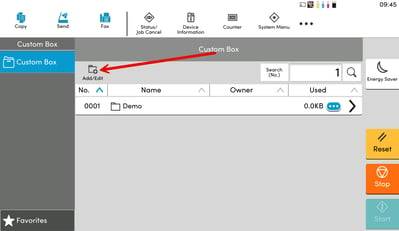
- Tap Add/Edit.
2. Create a New Box
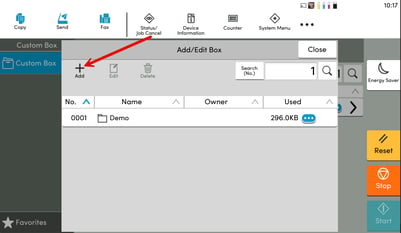
- Tap Add.
3. Enter Basic Information
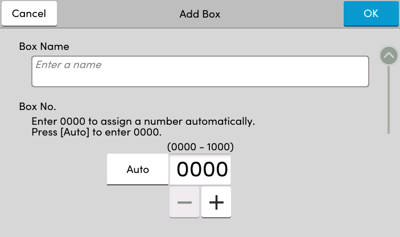
- Type the Box Name.
- (Optional) Assign an unused box number, or let the printer assign one automatically.
4. Configure Security & Storage
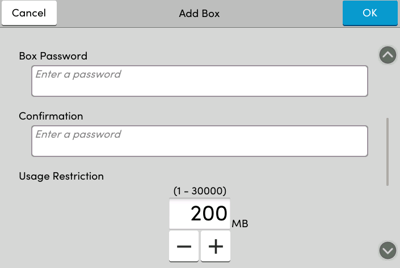
- Scroll down for additional options.
- (Optional) Set a Box Password.
- Set a Usage Restriction to limit storage size if needed.
5. Adjust Advanced Settings
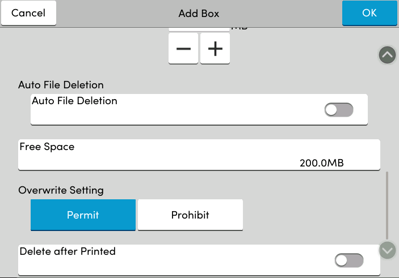
- Scroll down to configure additional options such as:
- Auto File Deletion
- Delete After Printed
6. Save Your Box
- Tap OK to save your settings.