
This guide explains how to configure the Kyocera KX print driver so that all print jobs are automatically saved to a designated Custom Box on the Kyocera device.
Before you begin, ensure that:
- The Kyocera printer is installed on the workstation.
- A Custom Box has already been created on the printer.
- You know the Custom Box number and, if applicable, the box password.
- You have permission to modify printer preferences.
Configure Default Printing to a Custom Box
-
Open the windows Start Menu and Type Printers & Scanners
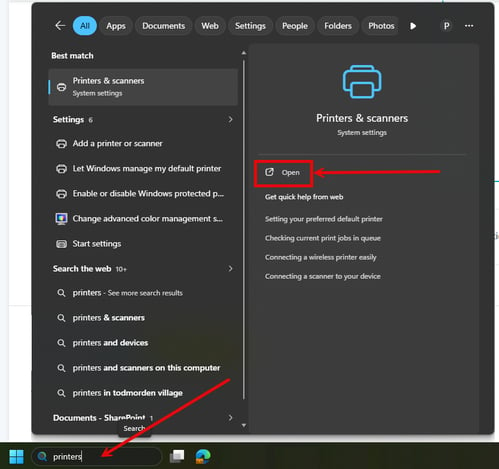
-
Click on your Kyocera Printer and select Printer Preferences.
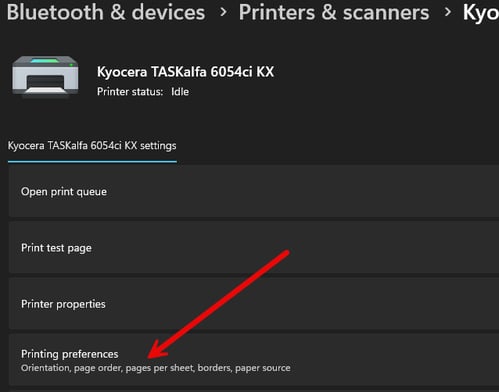
- Select the Job tab.
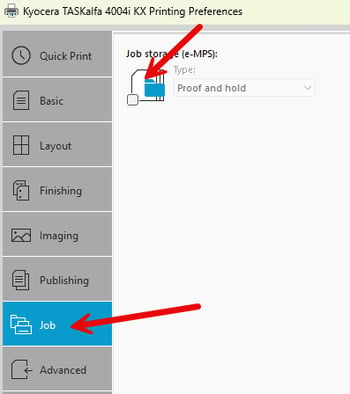
- Under Job Storage, choose Custom Box.
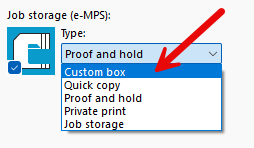
- Click Settings
- Choose either Use specific box number or Prompt for the box number
(Most users choose one of these. If you select Use specific box number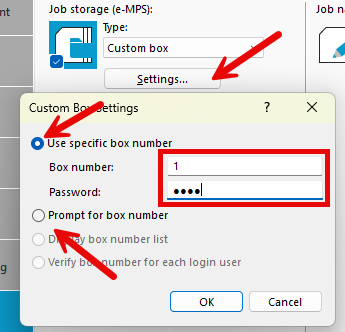
- Click OK to save the Custom Box settings.
- Click Apply, then OK.