
Current modern models that support Oauth2
(Some models may require a firmware update)
Colour TASKalfa:
MZ2501ci, MZ3501ci, MZ4001ci, MZ5001ci MZ6001ci, MZ7001ci
TA2554ci,TA3554ci,4054ci,5054ci,6054ci,7054ci
B/W TASKalfa:
MZ3200i, MZ4000i,MA3500ci, MA4500ci, MZ4001i, MZ5001i, MZ6001i, MZ7001i
TA4004i, TA5004i, TA6004i, TA7004i
Colour ECOSYS:
MA2101cfx/cwfx, MA2600cfx/cwfx, PA2101cx/cwx, PA2600cx/cwx, PA3500cx, PA4000cx, PA4500cx, MA3500cix/cifx, MA4000cfx/cifx
B/W ECOSYS:
PA4000x/wx, MA4000x/fx/wifx, PA4500x, PA5000x, PA5000x, PA5500x, PA6000x, MA4500x/fx/ix/ifx, MA5500ifx, MA6000ifx
What you’ll do
- Prepare Microsoft 365 & Exchange
- Register an Azure AD app
- Assign SMTP permissions
- Configure the scanner
- Test & troubleshoot
Prerequisites
- Microsoft 365 tenant with Exchange Online
- Global Admin or Application Admin rights
- A licensed mailbox to send from (e.g.
scanner@yourdomain.com)
Configuring OAuth2 (modern authentication) on a Kyocera copier for scan-to-email for Microsoft 365
Step 1: Access Web Interface
-
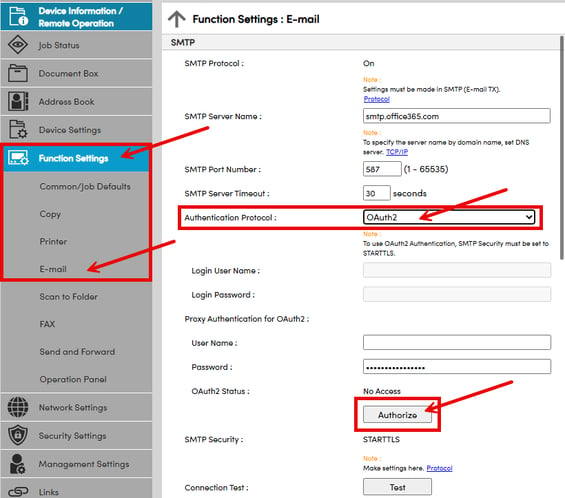
Open Kyocera Command Center RX by typing the printer's IP address into a web browser and log in as an Admin
- Navigate to Function Settings then click on E-mail
-
Update Authentication Protocol to OAuth2
- Submit changes
- Then click Authorize
Step 2: Authorize the Application
-
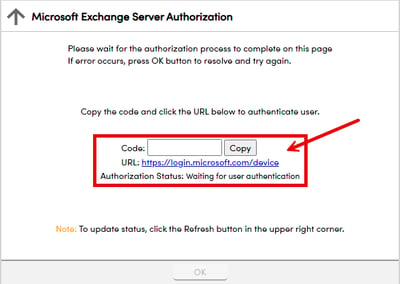
Once you select Authorize, you will see the Microsoft exchange server Authorization page
-
Copy the code
-
Click on the URL link below the code
-
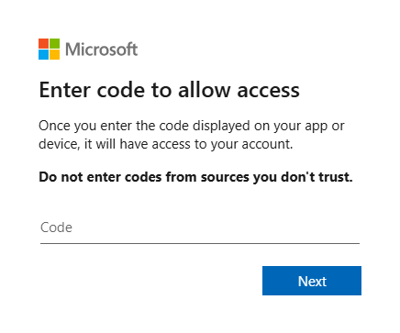
Enter the code and click next
-
A Microsoft login window will appear, sign in as your account set up for scanning to Email
-
Accept the permissions request
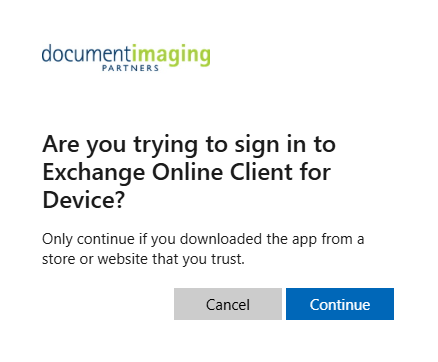
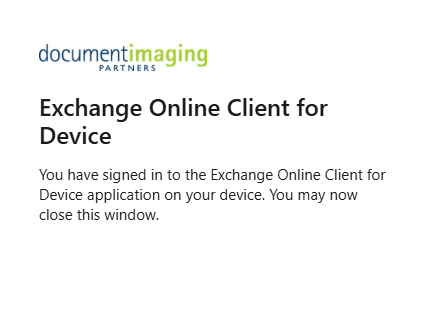
- If successful you should see
Step 3: Test